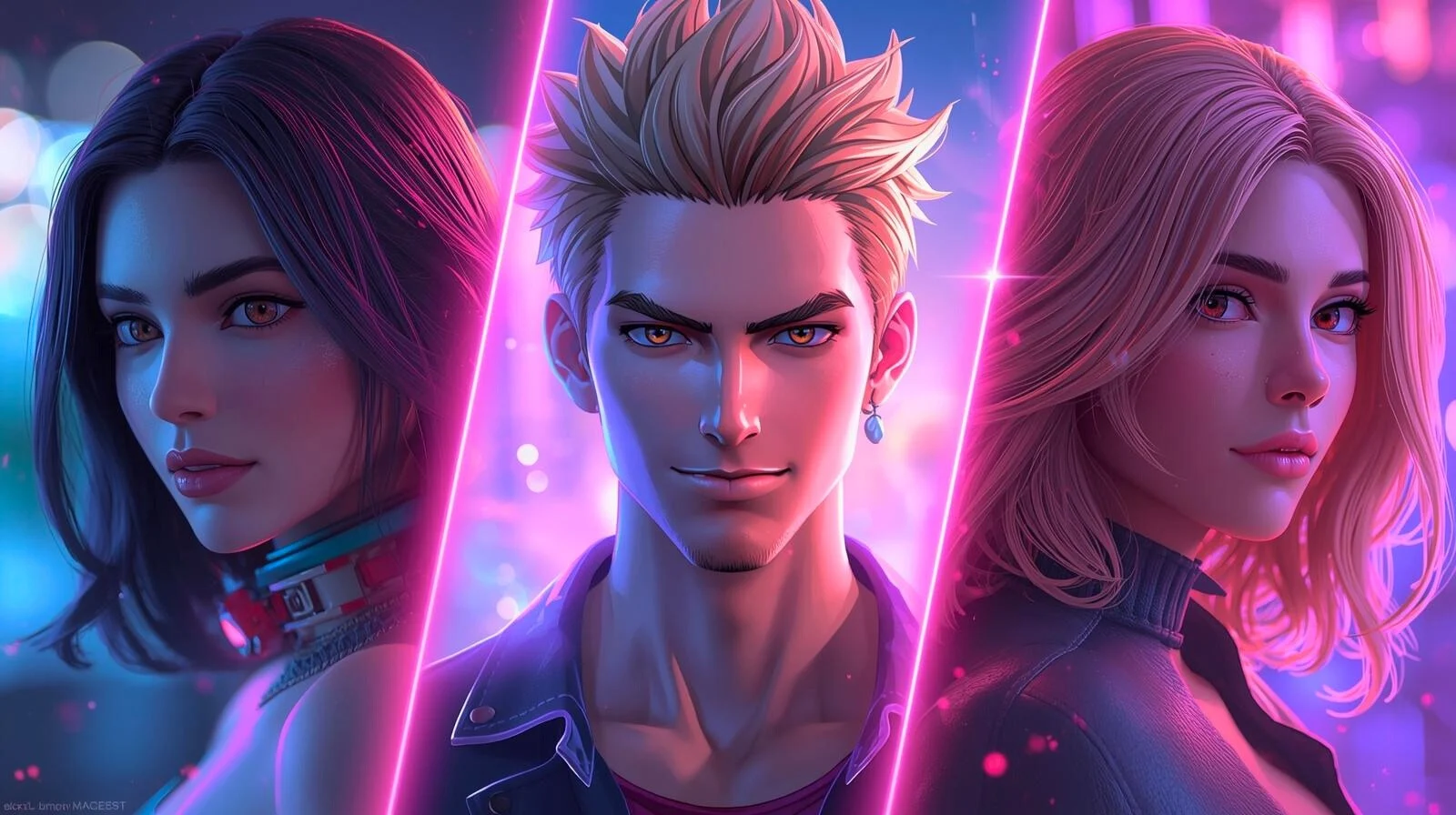
How to Create Manga & Comics with AI
From an idea to a published chapter in five steps. No drawing skills needed.
Five steps
Create a story
Open Manga & Comics and press Create. Give the story a title, choose Manga (black and white) or Comic (full color), pick an Art Style and the language of the text.
Add your characters
In the Character Presets block (left panel; on a phone open Settings) press + Add and describe each hero in detail: appearance, hair, clothing, age. Attach a reference photo if you have one, or search an existing inRole character by name.
Write the story
Paste your plot into AI Storywriter (Story Concept, then Generate Story). The AI turns it into a page-by-page storyboard you can edit. Or skip it and write each scene yourself.
Generate the pages
Select a page. Under Add Characters to this Scene tap the heroes who appear on it: their @name is inserted into the description, tap again to remove. Write the Scene Description and press Generate. Turn on Continue from previous so the new page uses the previous one as a visual reference, and AI Enhance to polish your prompt.
Chapters and publishing
Add pages and chapters as you go, one chapter per arc or volume. Press Publish Pages to release all pages or only the ones you select. The story stays in My Library, where you can edit it at any time.
Already have finished pages?
Use Upload to publish pages drawn elsewhere: create the story, add a chapter, drop the images in, drag them to reorder, then set a cover, categories and tags. A chapter can also get translations in other languages.
What does it cost?
Every plan includes a number of free page generations. When they are used up, each generated page costs gems. Uploading your own pages is free. See plans and limits
Tips for a consistent comic
Common questions
Can I edit a story after publishing? ▾
Who can see my story? ▾
Can I use my own inRole AI characters? ▾
Ready? Your first chapter is a few clicks away.
Start creating